Boost System Speed: How SSDs Transform Everyday Computing
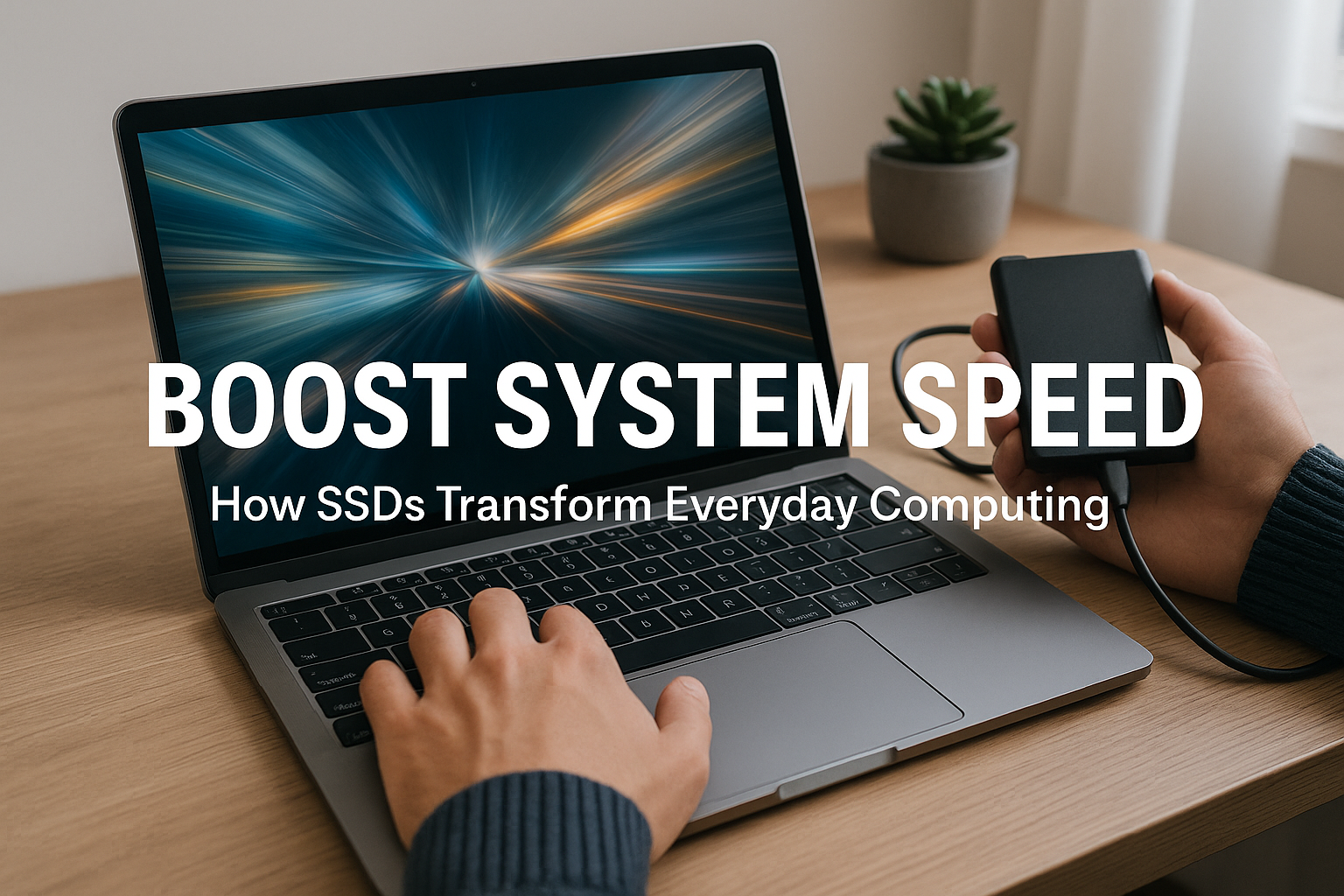
In today’s fast-paced digital world, speed and performance are more critical than ever. Whether it’s booting up your PC, launching applications, or transferring files, the storage device you choose has a direct impact on how smoothly and efficiently your system operates. Solid State Drives (SSDs) have emerged as the cornerstone of modern computing, drastically enhancing speed, responsiveness, and reliability. Below, we delve deep into how SSDs transform everyday computing, offering a significant leap over traditional internal hard drives and external hard drives.
What Is an SSD and Why Does It Matter?
An SSD (Solid State Drive) is a storage device that uses flash memory to store data. Unlike a conventional internal hard drive, SSDs have no moving parts, making them faster, more durable, and energy-efficient. Because data is accessed electronically rather than mechanically, the speed difference between SSDs and hard disk drives (HDDs) is monumental.
SSDs significantly reduce boot times, enhance the speed of software launches, and allow for faster data transfers. These performance boosts are noticeable not only in high-end systems but also in everyday laptops, desktops, and even external storage solutions that replace external hard drives with SSD technology.
Key Performance Advantages of SSDs
Blazing-Fast Boot and Load Times
The most immediate benefit users notice after switching to an SSD from a traditional internal hard drive is the dramatic decrease in boot time. A system that took over a minute to start with an HDD can boot in under 15 seconds with an SSD. Likewise, software and games load much faster, improving workflow and reducing user frustration.
Improved Multitasking Capabilities
SSDs allow for quicker access to data, which is essential for multitasking. Whether you’re streaming, editing photos, browsing multiple tabs, or running virtual machines, SSDs handle multiple processes more fluidly than their HDD counterparts. This performance leap becomes even more evident when switching from an older internal hard drive or using an external SSD for data-heavy applications.
Better File Transfer Speeds
Transferring large files is where SSDs truly shine. While a typical external hard drive might offer write speeds of 80–160 MB/s, even basic SSDs can reach 500 MB/s, with NVMe SSDs going well beyond 3,000 MB/s. For users frequently working with large files, the improvement is substantial compared to both internal and external hard drives.
SSDs in Everyday Applications
For Home Users
From streaming content to managing personal files, SSDs make daily computing smoother. Operating system updates, virus scans, and file searches become quicker and less disruptive, creating a noticeably more responsive experience. Replacing your slow internal hard drive with an SSD can completely change your system’s feel. Likewise, upgrading to an external SSD instead of a bulky external hard drive enhances mobility and transfer speed.
For Gamers
Game loading times are slashed with SSDs. Modern titles with massive open-world maps benefit from faster asset streaming, reducing lag and improving overall game performance. Many games now even recommend SSDs over internal hard drives for optimal performance.
For Content Creators
Video editors, photographers, and designers handle large files regularly. SSDs cut down rendering times, accelerate media imports/exports, and help in managing large project files seamlessly. Compared to both external hard drives and traditional internal drives, SSDs offer vastly improved reliability and speed.
SATA vs. NVMe SSDs: Understanding the Difference
SATA SSDs
- Based on the traditional SATA interface.
- Max transfer speeds of around 550 MB/s.
- Cost-effective and great for users upgrading from an internal hard drive.
NVMe SSDs
- Use the PCIe interface for lightning-fast data access.
- Speeds can exceed 3,000–7,000 MB/s depending on the model.
- Ideal for enthusiasts, professionals, and gamers seeking top-tier performance.
While both types offer huge improvements over internal hard drives, NVMe SSDs represent the pinnacle of current storage speed.
Energy Efficiency and Longevity
SSDs consume less power compared to internal hard drives, especially in portable devices like laptops and tablets. With no moving mechanical parts, they are more resistant to shock and vibration, making them ideal for mobile computing and harsh environments.
Moreover, modern SSDs come with wear-leveling and TRIM support, extending their lifespan and maintaining performance over time. This makes them a better long-term investment than most external hard drives, especially for users on the move.
Future-Proofing Your System
Switching to SSDs ensures your system can handle not just current software demands, but also future updates and applications. As operating systems and apps grow in size and complexity, the speed of SSDs prevents the sluggishness users often experience with older internal hard drives.
Even external SSDs can outperform legacy external hard drives, offering much faster access to media libraries, project backups, and more—especially over USB 3.1 or Thunderbolt interfaces.
How to Choose the Right SSD
Capacity
- 256GB to 512GB: Ideal for general users replacing an internal hard drive.
- 1TB and above: Recommended for gamers, professionals, and content creators, especially when replacing external hard drives used for media or backups.
Form Factor
- 2.5” SATA SSDs: Fit most desktops and laptops as a direct replacement for internal hard drives.
- M.2 SSDs: Compact and suitable for modern systems.
- Portable SSDs: Great alternatives to external hard drives for users on the go.
Interface
- Choose NVMe over SATA if your motherboard supports it for maximum speed.
- For portable storage, prefer external SSDs with USB 3.1/3.2 or Thunderbolt 3 for the best performance.
Installation and Upgrade Tips
Upgrading to an SSD is relatively straightforward:
- Backup your data from your current internal hard drive or external hard drive.
- Clone your old drive using cloning software like Macrium Reflect or Acronis.
- Install the SSD in the appropriate slot or bay.
- Configure boot priority in BIOS.
- Enjoy a dramatically faster computing experience.
Many SSDs come with migration kits that ease the transition from internal hard drives and external hard drives, helping both novice and advanced users upgrade efficiently.
Conclusion: SSDs Are No Longer a Luxury—They’re a Necessity
In an age where efficiency, speed, and reliability dictate productivity, SSDs are the most effective upgrade for any computer system. Whether you’re replacing an outdated internal hard drive or looking for a high-speed alternative to your external hard drive, SSDs deliver unparalleled improvements in boot speed, multitasking, and overall responsiveness.
They are quieter, cooler, and more energy-efficient, offering long-term benefits that far outweigh the initial investment. As prices continue to fall, SSDs are no longer a premium feature—they’re a prerequisite for modern computing.